
Understanding Analytics
Square Orb includes a self-hosted, privacy-first engagement tracking engine that helps photographers and creators understand which portfolio assets resonate most with visitors.
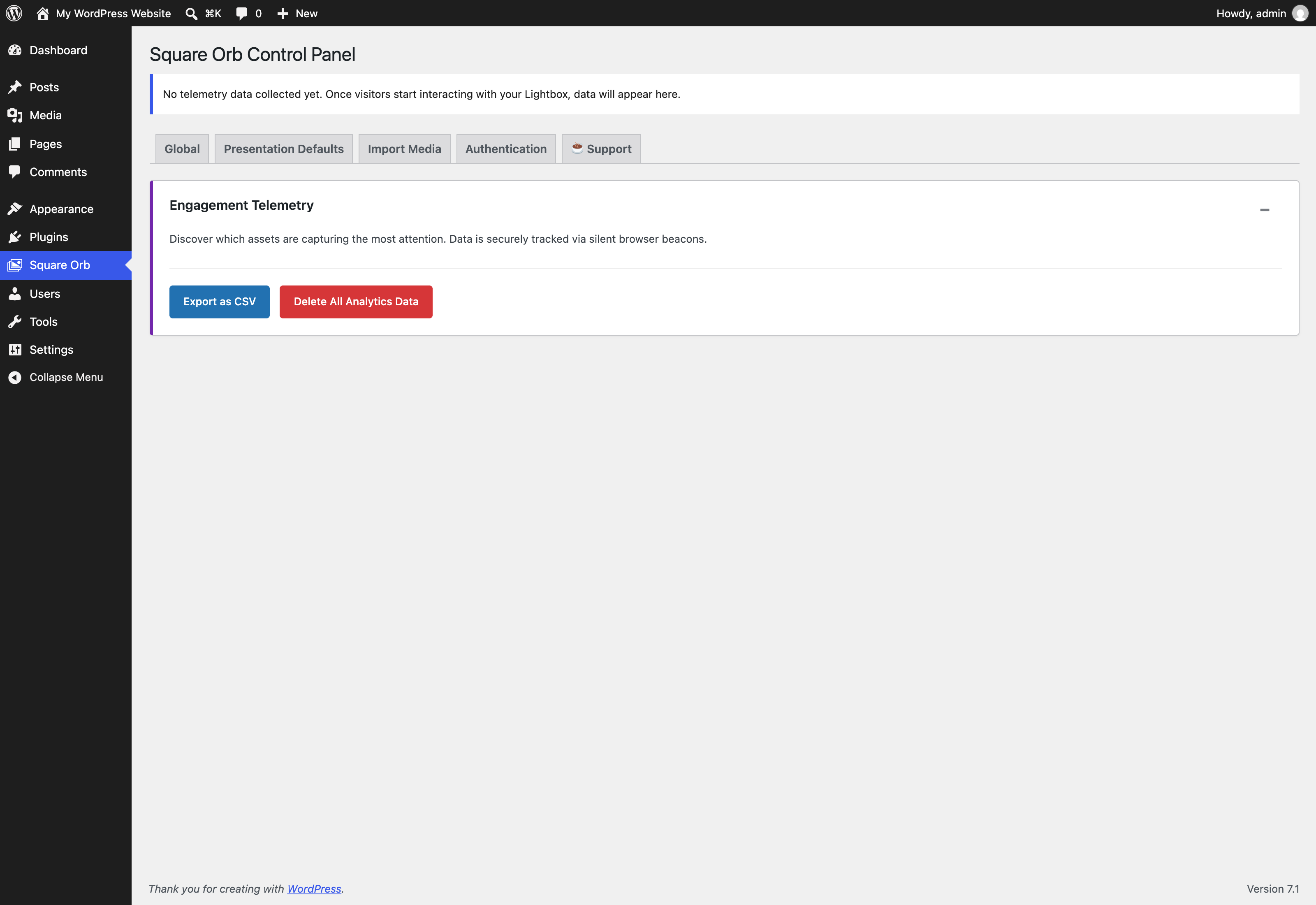
Activating the Analytics Tab
To protect user privacy and optimize server resources, Square Orb’s telemetry engine is disabled by default, and the Analytics tab is hidden from the admin navigation menu.
To activate analytics:
- Go to Square Orb > Global.
- Scroll to the Analytics & Telemetry section.
- Toggle on Enable Engagement Telemetry.
- Click Save Changes.
- The Analytics tab will now appear in the admin navigation bar.
Privacy-First Architecture
Square Orb is engineered with strict privacy standards:
- 100% Self-Hosted: All telemetry is captured and stored directly in your local WordPress database. No data is ever transmitted to external servers, cloud services, or third-party tracking APIs.
- Zero Personally Identifiable Information (PII): The tracking engine does not log IP addresses, browser fingerprints, user agent strings, or cookie identifiers.
- GDPR & CCPA Compliant: Because metrics are aggregated purely per asset ID without user identification, no consent banner or cookie disclaimer is required for Square Orb’s telemetry.
- Locally Bundled Visualizations: The charts are rendered using a locally bundled copy of Chart.js—no external CDN connections are established.
flowchart TD
    subgraph Client Browser
        A[Visitor Interacts with Gallery Asset] --> B[Front-End Timer Computes Dwell Seconds]
        B --> C[POST /wp-json/square-orb/v1/telemetry<br/>Payload: id, dwell]
    end

    subgraph WordPress Backend
        C --> D{Telemetry Enabled?<br/>sorb_enable_telemetry}
        D -->|No| E[403 Disabled: Discard Request]
        D -->|Yes| F{1-Hour Rate Limit Transient}
        F -->|Duplicate| G[200 OK: Ignore Repeat]
        F -->|Unique| H[Update Attachment Post Meta]
        H --> H1[sorb_view_count + 1]
        H --> H2[sorb_total_dwell_time + seconds]
    end

    subgraph Admin Analytics Tab
        H1 --> I[Aggregated Dashboard]
        H2 --> I
        I --> J[Chart.js Visual Performance Graphs]
        I --> K[Downloadable CSV Reports]
    end
Key Engagement Metrics
The Analytics dashboard provides deep visibility into asset interaction:
| Metric | Measurement Unit | Description |
|---|---|---|
| Total Views | Count | Incremented when an asset is rendered in the active gallery viewport or opened in the Lightbox. |
| Total Dwell Time | Seconds | High-precision measurement of how long an asset remains actively displayed on the viewer’s screen or in the lightbox. |
| Engagement Rate | Ratio | Average dwell time per view, highlighting which photographs captivate visitors longest. |
The dashboard displays top-performing assets in interactive visual charts alongside a sorted tabular breakdown.
Exporting & Managing Telemetry Data
Square Orb provides built-in tools for reporting and data hygiene:
- Export CSV: Click the Export Telemetry CSV button at the top of the Analytics tab to download a raw CSV export of all asset performance metrics for external analysis in Excel, Numbers, or Google Sheets.
- Reset Telemetry Data: If you are redesigning your portfolio or want to start a fresh measurement period, you can purge all historical telemetry records with a single click.
- Clean Uninstall: When the Square Orb plugin is uninstalled via WordPress Admin, all telemetry options and stored metrics are automatically purged from your database.