
Control Panel Overview
The Square Orb control panel is your centralized hub for configuring site-wide styling defaults, managing performance and protection settings, connecting cloud accounts, and viewing audience engagement metrics.
To access the control panel, navigate to Square Orb in your WordPress admin menu.
Navigation Tabs
The control panel is organized into dedicated tabs:
- Global: Performance caching, digital asset protection (right-click and watermarking), and the engagement telemetry switch.
- Presentation Defaults: Master Override switch, live mockups, heading options, layout presets, pagination buttons, and lightbox viewer settings.
- Import Media: Cloud import staging grid and sideloading queue for Google Photos.
- Authentication: OAuth credentials and connection handshakes for Google Photos, Google Vision AI, and Adobe Creative Cloud.
- Analytics: Engagement dashboard displaying views, dwell time, Chart.js graphs, CSV export, and data management (visible when telemetry is enabled).
- ☕ Support: Quick links to documentation and project support via Ko-fi.
1. Global Tab
The Global tab (tab=sitewide) controls baseline site operations and asset security.
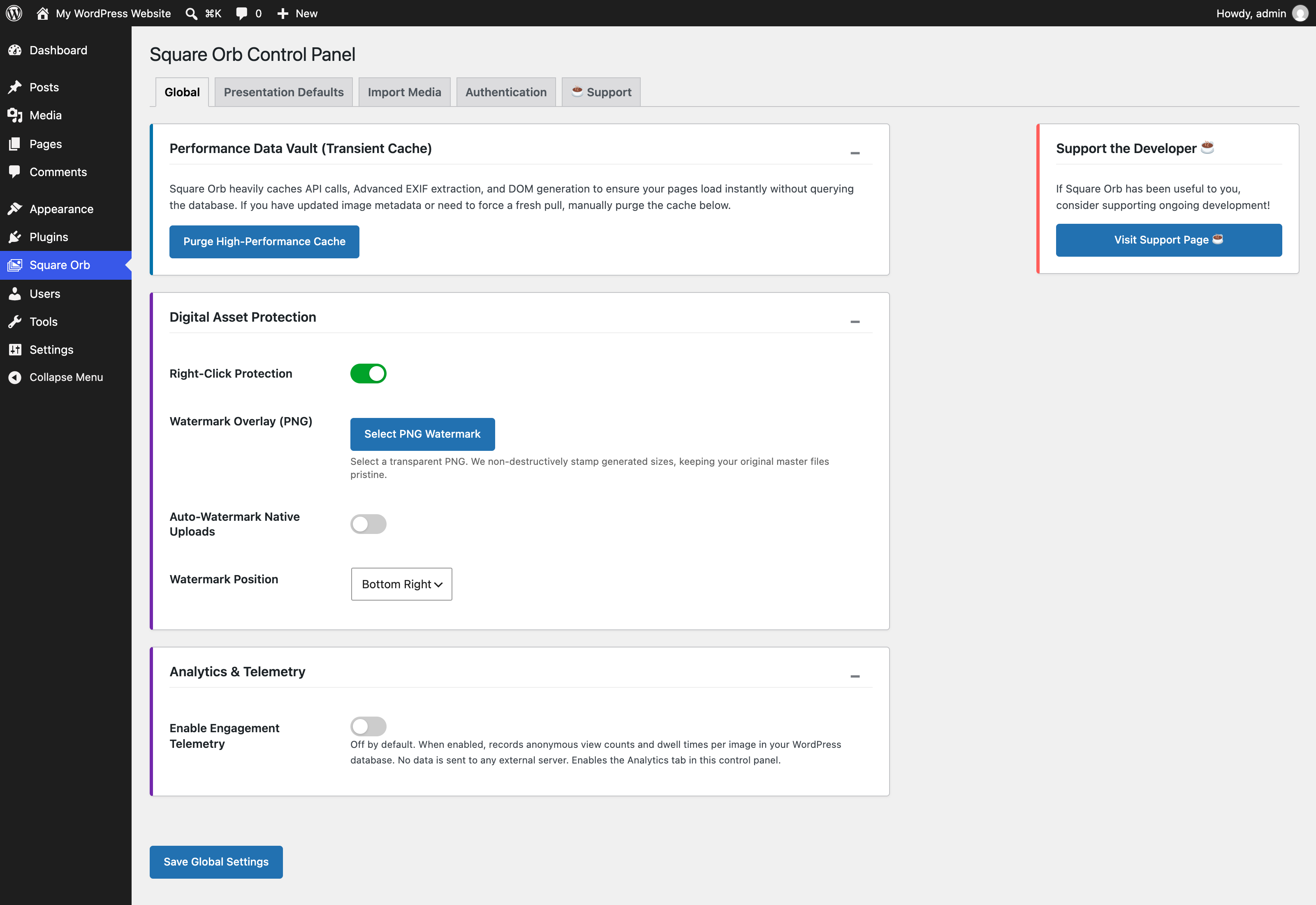
Performance Data Vault (Transient Cache)
Square Orb caches image metadata queries, EXIF extraction, and layout calculations as WordPress transients (_transient_sorb_cache_*) for 24 hours to eliminate repetitive database queries and ensure instantaneous page loads.
- Purge High-Performance Cache: Click this button if you updated image titles, alt text, or EXIF metadata in the Media Library and need galleries to reflect those changes immediately.
Digital Asset Protection
Security tools designed to deter unauthorized image downloading:
- Right-Click Protection: Disables the browser’s context menu on gallery items and within the lightbox overlay.
- Watermark Overlay (PNG): Select a transparent PNG watermark from your media library. Square Orb non-destructively stamps generated intermediate image sizes (
sorb-pro-highres,large,medium_large), leaving your original uploaded files untouched. - Auto-Watermark Native Uploads: When enabled, automatically applies the selected watermark to any new images uploaded to WordPress.
- Watermark Position: Choose between Bottom Right (default) or Center.
Analytics & Telemetry
- Enable Engagement Telemetry: Off by default. When enabled, records anonymous view counts and dwell time per image using silent browser beacons stored locally in your database. No external servers are contacted and no personally identifiable information (PII) is gathered.
- Enabling this setting displays the Analytics tab.
2. Presentation Defaults Tab
The Presentation Defaults tab (tab=global) sets the default look and feel for all galleries across your website.
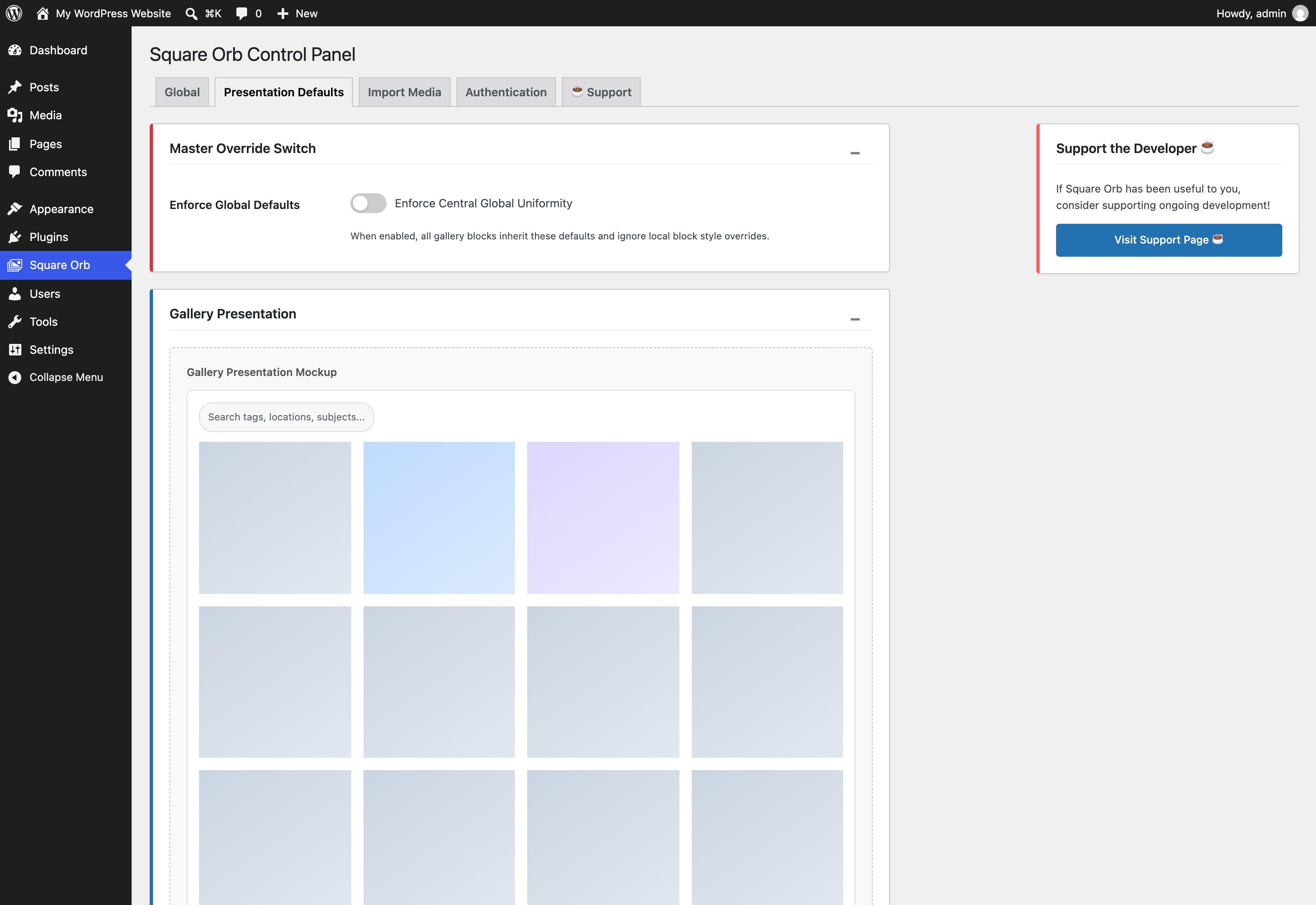
Master Override Switch
- Enforce Global Defaults: When toggled on, all gallery blocks site-wide strictly follow these global presentation defaults, ignoring any local style overrides configured on individual blocks.
- Note: Content-level values (such as image selection and custom heading text) always remain per-block and are never locked out.
Gallery Presentation
Includes an interactive Gallery Presentation Mockup that updates in real time as you adjust settings.
Heading Settings (v1.1)
- Show Gallery Heading: Toggle whether galleries render a heading above the media grid by default.
- Gallery Heading Tag: Select the HTML heading tag (
h2,h3,h4,h5,h6, orp). - Gallery Heading Styling Source:
Inherit Theme Styles: Relies on your active theme’s typography and color rules.Use Square Orb Preset: Applies modern, responsive heading typography.
- Show Divider Under Heading: Adds a subtle horizontal divider line (
<hr class="sorb-gallery-divider" />) below the heading.
Layout & Grid
- Gallery Style: Choose your default layout:
- Perfect Square Grid (1:1 uniform cropping)
- Dynamic Masonry (editorial, multi-column waterfall)
- Cinematic Justified Row (16:9 proportional rows)
- Responsive Swipe Carousel (horizontal slider with scroll-snap)
- Interactive Traveler’s Map (geographic pins powered by EXIF GPS data)
- Desktop Columns: Responsive Auto-fill or fixed 3, 4, 5, or 6 columns.
- Mobile Columns: 1, 2, 3, or 4 columns for small viewports (default: 2).
- Grid Gap (px): Spacing between gallery items (default: 15px).
- Corner Radius (px): Border radius for gallery thumbnails (default: 0px).
Discovery & Visibility
- Enable Category Filters: Renders filter chips for categories assigned to attachment images.
- Enable Smart Search (Experimental AI): Displays an animated real-time search bar that filters gallery items by tags, title, and caption.
Loading & Pagination
- Initial Items to Show: Sets the initial count of images rendered on page load (default: 20, min: 4).
- Enable Scroll Animations: Smoothly fades and slides items into view as they enter the viewport.
Load More Button
- Button Text: Label for the AJAX pagination trigger (default: “Load More”).
- Button Styling: Choose between Pill (Fully Rounded), Rounded Corners, Square, or Inherit WordPress Theme Default.
- Background & Text Colors: Custom color pickers with hex inputs and palette swatches.
Lightbox Presentation
Includes a Live Lightbox Mockup showing your overlay color, controls, and frame borders in real time.
- Autoplay Lightbox Videos: Automatically starts video playback (YouTube, Vimeo, or MP4) when opened in the lightbox.
- Overlay Matte Color: Supports hex or rgba values (e.g.,
rgba(0, 0, 0, 0.95)) for full opacity or subtle transparency. - Transition Style: Choose from 11 hardware-accelerated animations (None, Fade, Blur, Wipe, Curtain, Swipe, Slide, Zoom, Bounce, Flip, Spin).
- Media Border Color, Width, & Radius: Frame borders and rounded corners around lightbox media.
- Slideshow Controls & Speed: Enable auto-advancing slideshows with adjustable durations (1–20 seconds).
- Control Buttons Styling: Customize the background, icon color, and border radius of the navigation arrows, close button, and slideshow controls.
- Information Bar Display: Toggle the thumbnail Filmstrip, Titles, Captions, Advanced EXIF Data (camera, focal length, aperture, shutter speed, ISO), and Social Sharing links.
3. Import Media Tab
The Import Media tab (tab=import) connects directly with cloud accounts authenticated on your site.
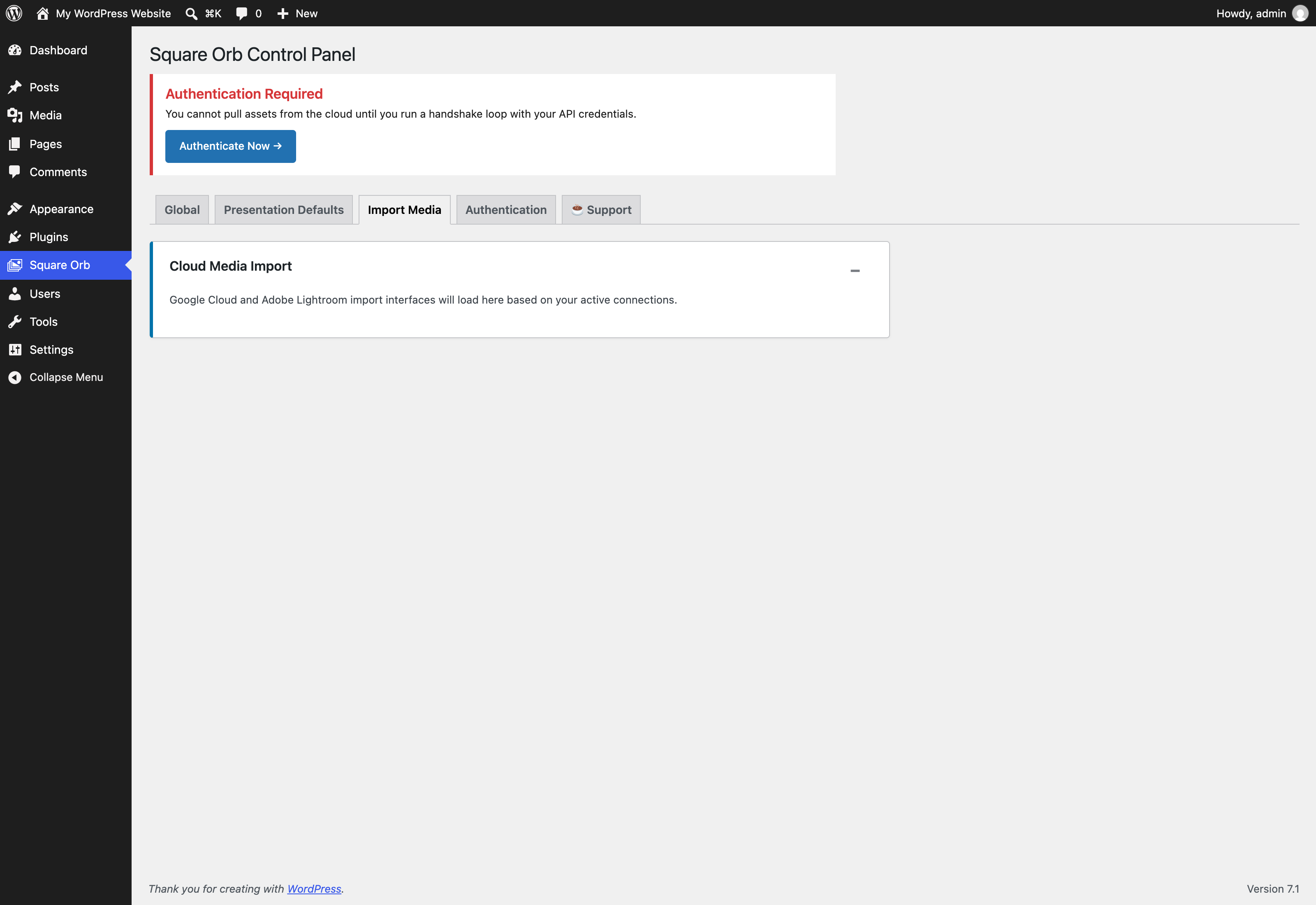
Google Photos Import Workflow
- Click Select Cloud Photos via Google Canvas.
- A Google Photos Picker popup opens, allowing you to browse your albums and select images.
- Upon confirming your selection, thumbnails load into the admin Photo Grid.
- Select or deselect any photos you wish to keep.
- Click Sideload to WordPress Core (X).
- Square Orb downloads the original assets, creates WordPress attachment records, extracts dominant colors and GPS data, runs optional AI auto-tagging, applies watermarks if configured, and displays real-time progress.
- If any items encounter network interruptions, use the Retry failed only button.
Note on Adobe Lightroom CC: Adobe account authentication is currently supported on the Authentication tab. The Lightroom media browsing and import UI is in active development for the upcoming v1.2 release.
4. Authentication Tab
The Authentication tab (tab=auth) stores your OAuth credentials and handles token handshakes.
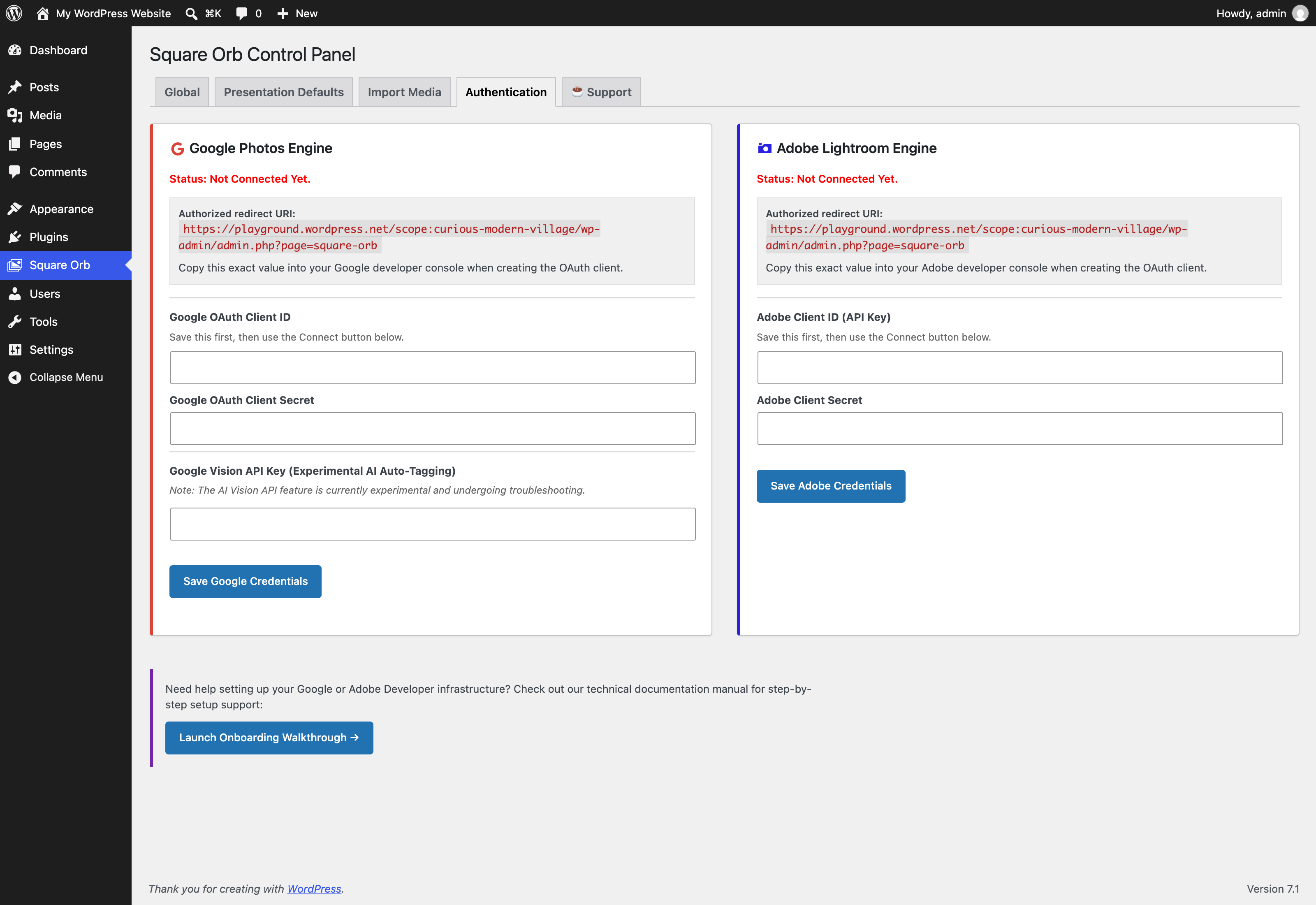
Google Photos Engine
- Authorized Redirect URI: Copy the displayed URI into your Google Cloud Console OAuth client.
- Google OAuth Client ID & Secret: Enter your credentials and click Save Google Credentials.
- Connect to Google Photos: Click this button after saving credentials to authorize access.
- Google Vision API Key: Optionally provide a Google Cloud Vision API key to enable AI-powered label detection and auto-tagging during cloud imports.
Adobe Lightroom CC Engine
- Authorized Redirect URI: Copy the displayed URI into your Adobe Developer Console.
- Adobe Client ID & Secret: Enter your credentials and click Save Adobe Credentials.
- Connect to Lightroom: Perform the OAuth handshake to authenticate your Adobe account.
5. Analytics Tab
The Analytics tab (tab=analytics) becomes available when Enable Engagement Telemetry is toggled on in the Global tab.
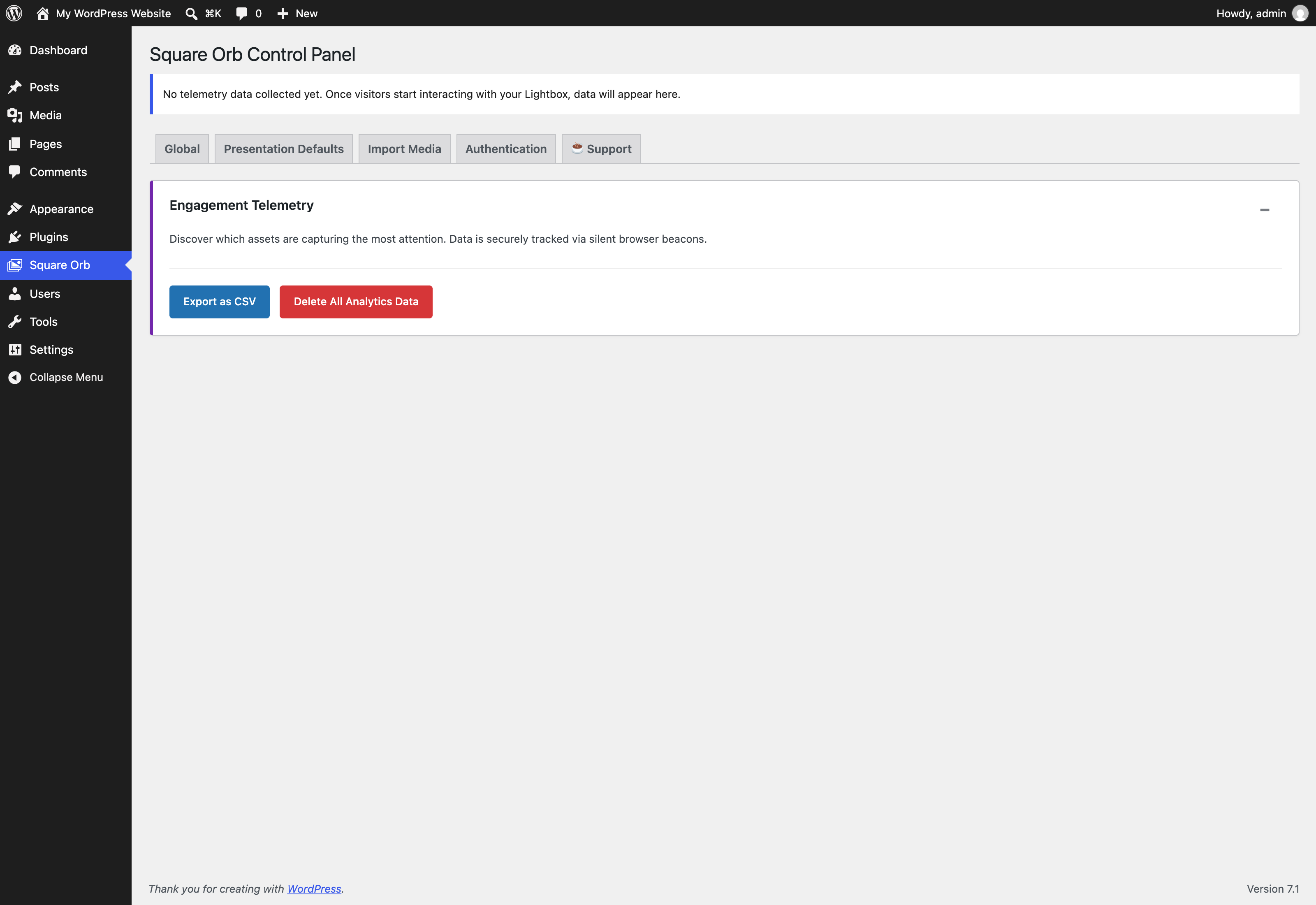
Key Features
- Interactive Telemetry Chart: A Chart.js bar chart comparing Total Views and Total Dwell Time (in seconds) across your most engaging images.
- Engagement Data Table: Displays your top 10 performing media assets with:
- Thumbnail preview
- Asset title
- Total views
- Total dwell time (s)
- Average dwell time per view (s)
- Export as CSV: Download a complete, timestamped CSV report (
square-orb-analytics-YYYY-MM-DD.csv) containing engagement statistics for all tracked assets. - Delete All Analytics Data: Permanently resets all view counts and dwell time records from your database.
6. Support Tab
The ☕ Support tab (tab=support) provides:
- Direct links to the official documentation.
- A link to support ongoing plugin maintenance and feature development on Ko-fi.