
Connecting Cloud Accounts
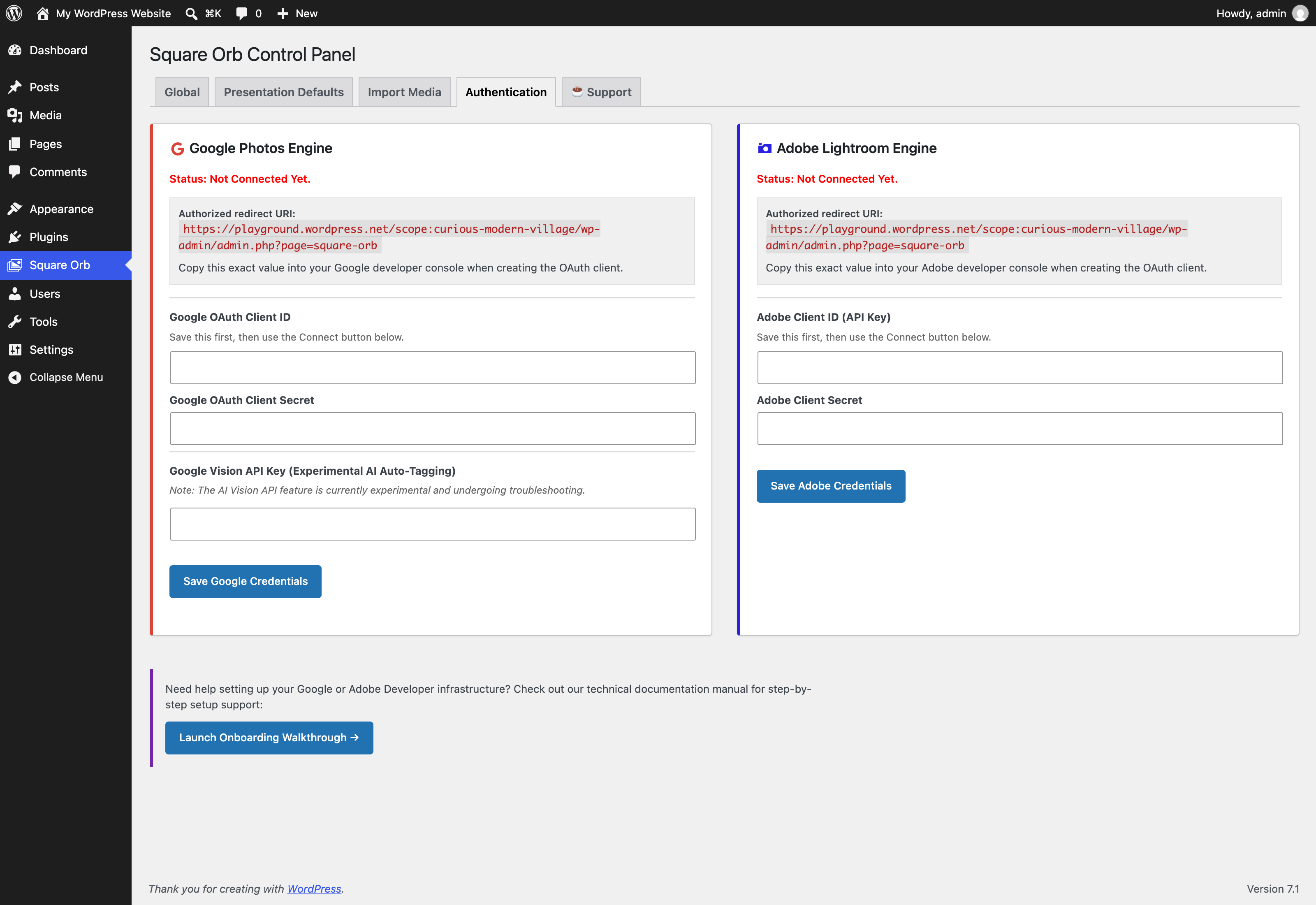
To set up your cloud connections:
-
Navigate to Square Orb > Authentication in your WordPress admin menu.
-
Google Photos: Enter your Google OAuth Client ID and Google OAuth Client Secret, click Save Google Credentials, and then click Connect to Google Photos to authorize your account.
-
Google Vision API: Optionally enter a Google Cloud Vision API key for experimental AI label detection and auto-tagging. Click Save Google Credentials.
-
Adobe Creative Cloud (Lightroom): Enter your Adobe Client ID and Adobe Client Secret, click Save Adobe Credentials, and then click Connect to Lightroom to establish the OAuth connection. (Note: Photo browsing and import UI via Lightroom is in active development for v1.2).
OAuth 2.0 Authentication Flow
sequenceDiagram
    autonumber
    actor Admin as Site Admin
    participant WP as Square Orb Admin
    participant OAuth as Cloud Provider OAuth

    Admin->>WP: Enter Client ID & Secret
    Admin->>WP: Click 'Save Credentials' (Required First Step)
    Admin->>WP: Click 'Connect Account'
    WP->>OAuth: Redirect with Client ID + Redirect URI + Scopes
    Note over OAuth: Validates Authorized Redirect URI<br/>& Test Users Email Roster
    OAuth->>Admin: Display Consent Screen
    Admin->>OAuth: Authorize Access
    OAuth->>WP: Redirect with Authorization Code
    WP->>OAuth: Exchange Code for Access & Refresh Tokens
    OAuth->>WP: Return Secure Tokens
    WP->>WP: Save Tokens in WordPress Database
    WP->>Admin: Display 'Connected' Badge
Key Concepts to Remember
- Authorized Redirect URI: Both Google Cloud Console and Adobe Developer Console require an “Authorized Redirect URI.” You must copy the exact URL displayed on your WordPress Square Orb > Authentication tab (e.g.,
https://yourdomain.com/wp-admin/admin.php?page=square-orb) and paste it into the respective developer console. - Save Before Connecting: Always click the Save Credentials button before clicking the “Connect” button. The connection handshake requires the credentials to be saved in your WordPress database first.
- Security: Never share your Client Secret or Vision API Key publicly.
- Billing & Quotas: Google Photos Picker API and Adobe Developer APIs offer free tiers for personal website usage, but require projects to comply with respective developer terms of service.