
Cloud Import Workflow
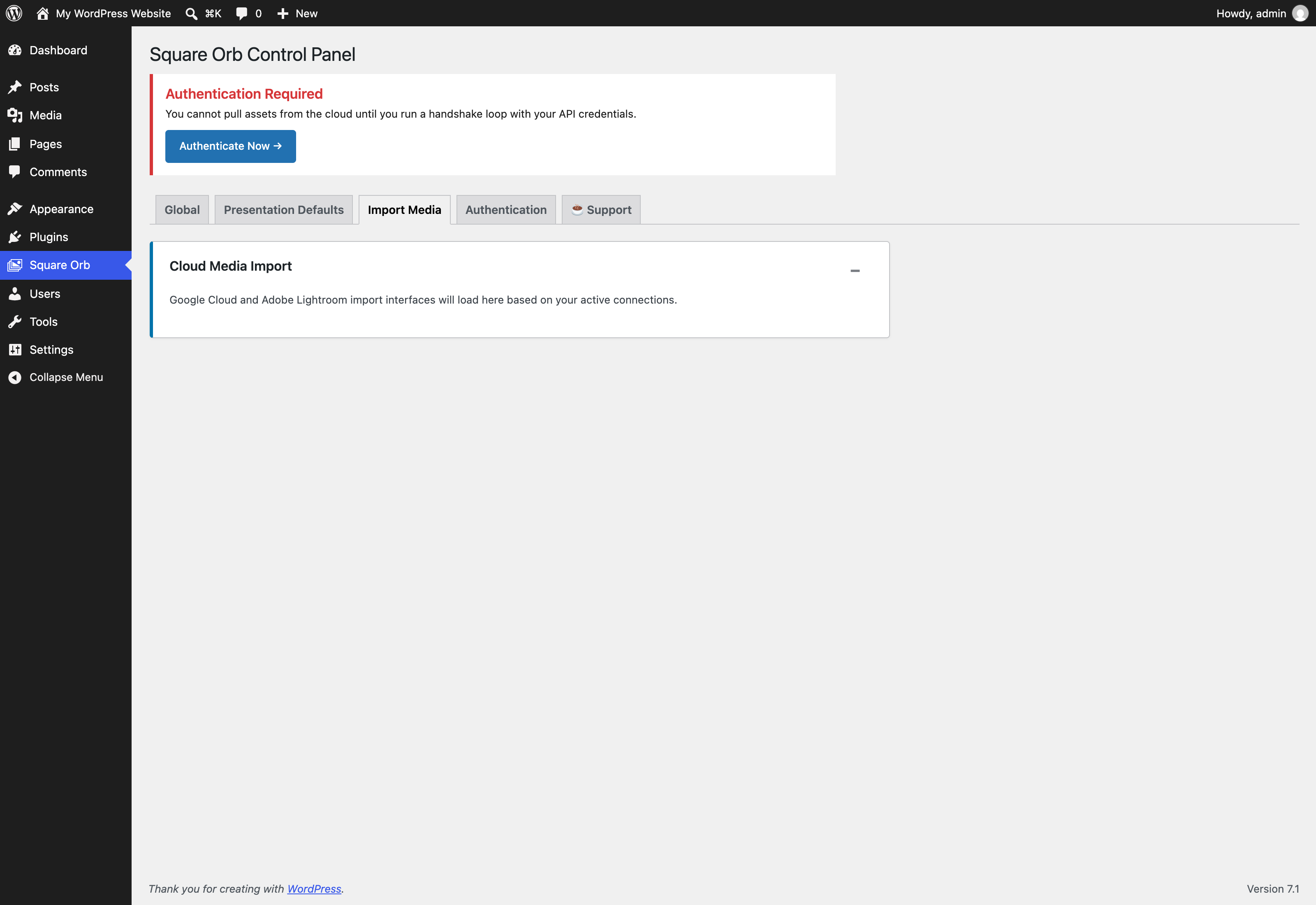
Once your Google account is authenticated on the Authentication tab, use the Import Media tab to sideload assets directly into your WordPress Media Library.
Import Lifecycle & Pipeline
flowchart TD
    A[Click 'Select Cloud Photos via Google Canvas'] --> B[Create Google Picker Session<br/>POST photospicker.googleapis.com]
    B --> C[Select Photos in Google Photos Modal]
    C --> D[Poll Picker Session State<br/>sorb_poll_picker_session]
    D --> E[Render Staged Photo Preview Grid]
    E --> F[Select Images & Click 'Sideload to WordPress Core']
    F --> G[Batch Asynchronous Sideloading<br/>sorb_sideload_image]
    G --> H[Process Each Media Asset]
    subgraph Processing Pipeline
        H --> H1[Download Image Stream]
        H1 --> H2[Generate WP Responsive Sizes]
        H2 --> H3[Extract EXIF & GPS Metadata]
        H3 --> H4[Calculate Dominant Color HEX]
        H4 --> H5[Apply Watermark if active]
    end
    H5 --> I{Import Status}
    I -->|Success| J[Green Checkmark Thumbnail<br/>Available for Galleries]
    I -->|Network Error| K[Log Error Details<br/>Enable 'Retry Failed Only']
Step-by-Step Import Instructions
-
Navigate to Square Orb > Import Media in your WordPress admin menu.
-
Click Select Cloud Photos via Google Canvas.
-
In the Google Photos Picker popup window, browse your Google Photos library, check the items you wish to import, and click Done.
-
The selected items will load into the admin Photo Grid as staged previews. By default, all newly chosen items are highlighted in green. Click any thumbnail to toggle its selection status.
-
Click Sideload to WordPress Core (X) (where X is the number of selected assets).
-
Square Orb streams the images to your server, generates standard WordPress image sizes, extracts EXIF/GPS metadata, calculates dominant color hex codes, applies watermarks (if enabled), and attaches them to your WordPress Media Library.
-
When the batch completes:
- Successfully imported items display a green checkmark thumbnail.
- If network interruptions occur, an expandable error log reveals the exact error message. Click Retry failed only to reprocess only the failed items without duplicating successful ones.
- Click View imported media to jump straight to your WordPress Media Library.
Note on Adobe Lightroom CC: Account authentication is currently supported on the Authentication tab. Direct cloud photo browsing and sideloading for Lightroom CC assets is scheduled for the upcoming v1.2 release.